

For everyone who wants to auto play a YouTube video in their PowerPoint Presentations. I was able to insert the video in my PowerPoint but I was not able to do it as an auto play. So during th presentation I had to find the mouse button and play the video I found the solution and it was quite easy. I created a short manual since this took me about 2 hours finding a solution for this. And the actual solution is just a matter of 3 minutes of work. Let me hear about alternatives.
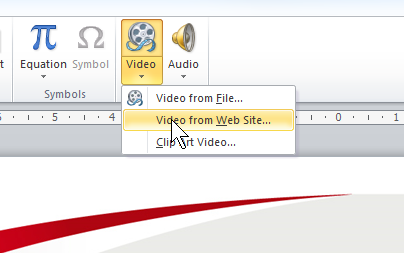
1. Open PowerPoint. Use the insert ribbon and insert “video from Web Site.
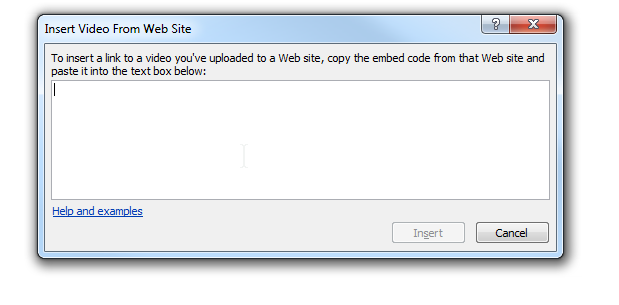
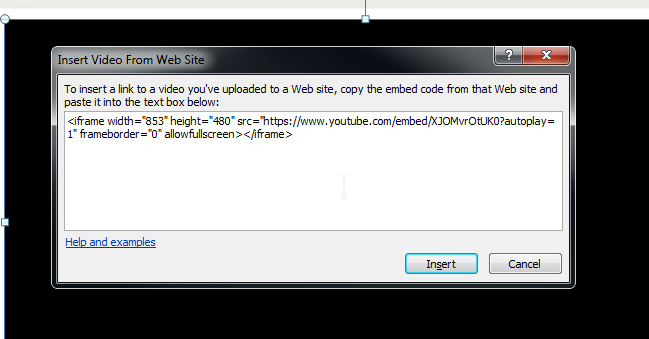
2. You get a pop-up window asking the website code.
3. Go to YouTube and find the video you want to embed.
Scroll down the video and select the share option. And then use the tab “Embed”
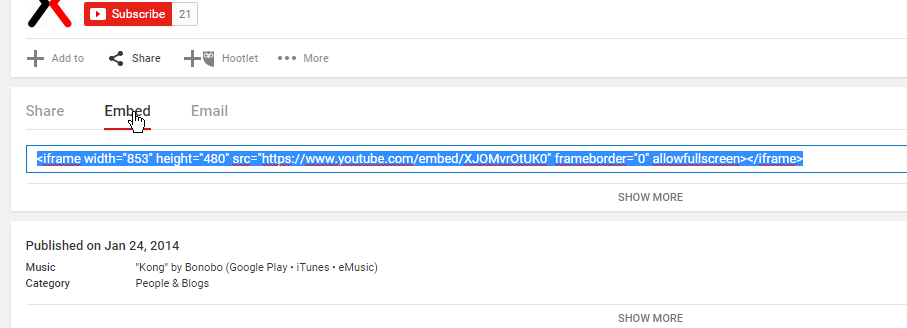
4. Copy the code and past it in the pop-up window in the PowerPoint presentation.
At the end of the url you should add ?autoplay=1
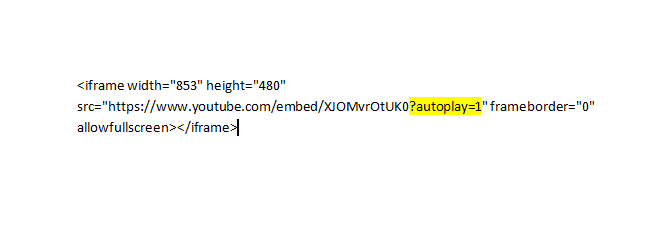
5. Past this in the Video From Web Site box and you are done. Now you have auto play YouTube video in your PowerPoint.


You’re the man, thank you!
Thanks !!! Glad I could help..
Many thanks this was a great help.
Quick question I am trying to not only embed but trim (start/stop time) and autoplay video in Powerpoint. Any suggestions?
I have no experience with this but perhaps you can add a start and end time to the youtube video url. Let me know if this works https://www.youtube.com/watch?v=zeI-JD6RO0k Let me know if this is helpful. (Have not tried this)
Thank you thank you! You saved me hours of work and frustration!
You are welcome. Glad I could help. Please send whatever you can spare to my paypal account. … Much appreciated.
the slide show goes automatically to the next page before the video finishes. any idea?
Yes.. add a timer to the slide transition that is the same as the duration of the video.. Simple.. :
Thank you so much!! You have saved me so much time and frustration, you’re awesome
: )
Glad I could help ?
thank you for this.
Glad I could help ? (just seeing these lol)
Thank you, I spent hours looking at various solutions online before I found this.
Glad I could help BRian!
Thank You! Tried everything but didn’t work until I found this. Needed to embed something in PowerPoint for a school project. Thanks!!
Glad I could help 🙂
Thank you so much for this! None of the official solutions were working.
Glad I could help 🙂
I was able to add the autoplay function on Powerpoint 2016. This in combination with an advance slide after manually inputting the video’s length worked for me.
This does not work with Powerpoint 2016. I have tried it endlessly with different Youtube videos, starting with “share,” “embed,” copying the URL, and then typing “?autoplay=1” before inserting the video from the web site into a PPT slide. I would like it to play automatically when that slide comes up. Do you have further suggestions, or is this just not possible?
No sorry. I am still working with an older version of office.
Same here. The video continues to play or replays when going to the next slide.
Thank you SO much.. I had wasted so much time on this and then I found this…. Thanks a million!
The video embedded replays when I go to the next slide – how do i prevent that?
No idea.. I have not seen this issue.